
The order bump
An order bump is a second product offered on the checkout page as a tickable box beside the pay button. Ticking it adds a line to the order; the total, tax and shipping recalculate on the spot. It is one charge, not two, which is why it is in the free plugin.
What it is
Section titled “What it is”The buyer is already paying. The bump asks would you also like this? at the moment they have decided to buy, on the same page, for one tick. Add a bag of beans to the kit; add gift wrapping; add the workbook to the course. It is the highest-converting offer in most funnels, and it costs the buyer nothing in attention.
Adding one
Section titled “Adding one”- Open the funnel and go to the Offers tab.
- Choose the Checkout step and the bump role, pick the product, and give it a headline and a line of body copy.
- Leave Price in this funnel empty to use the product’s own price, or set a different one for this funnel.
- Save offer.
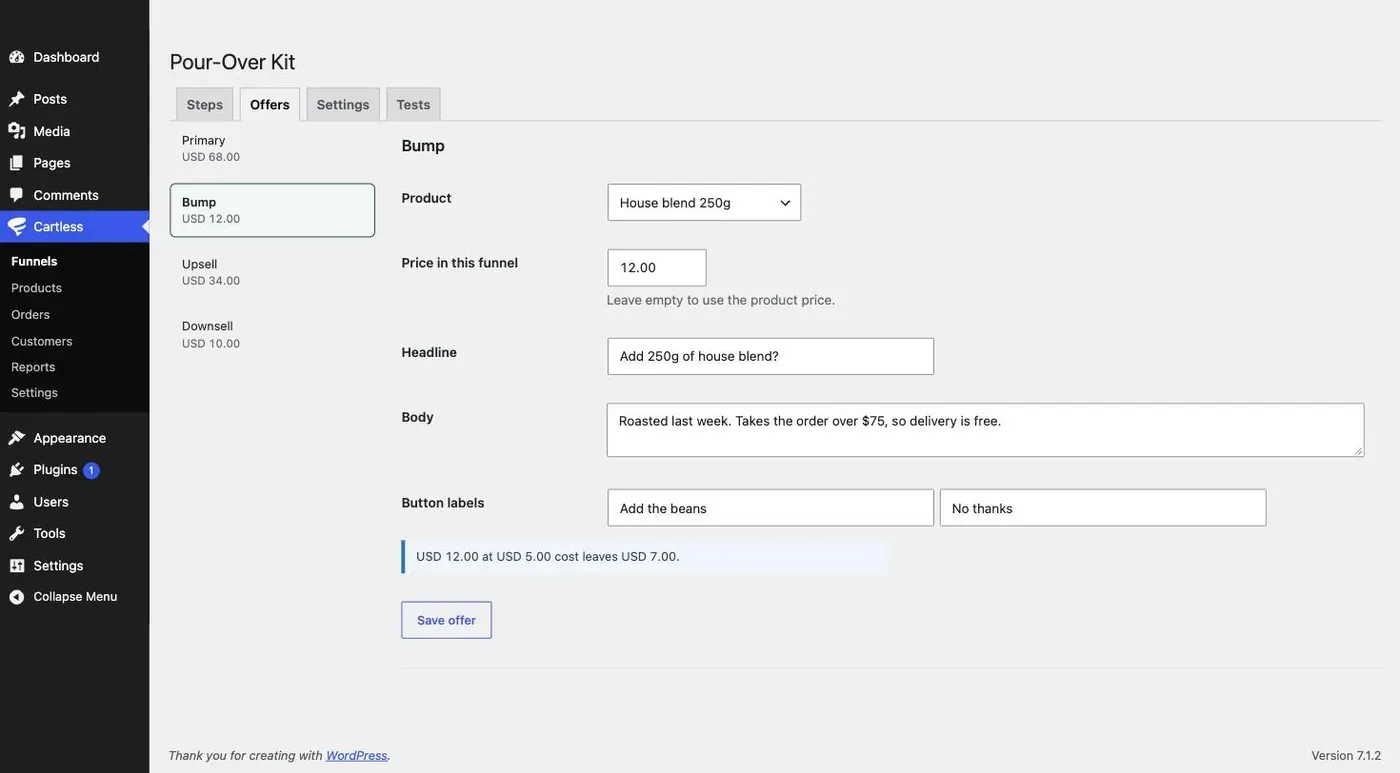
If the bump has a question of its own — an engraving, a grind — it appears with the bump, and only when the bump is ticked.
How tax and shipping recalculate
Section titled “How tax and shipping recalculate”Ticking the bump asks Cartless for a new quote. Tax is worked out per line, so a bump in a different tax class is taxed at its own rate. Shipping follows your shipping rules — a bump can push the order over a free-shipping threshold, which the summary shows immediately.
The total in the pay button and in any wallet sheet updates with the summary, so the buyer never approves an amount they have not seen.
Reading bump revenue
Section titled “Reading bump revenue”Cartless → Reports breaks revenue and margin down by mechanic — product, bump, upsell — for the last 7, 30 or 90 days, or a year. The bump has its own line. If you have entered what the products cost you, it shows margin too, which is the number that tells you whether the bump earns more per unit of revenue than the main product. It usually does.